If you’ve ever tried to repurpose a video for a different platform, you already know the frustration of dealing with mismatched aspect ratios and awkward black bars. Cropping a video used to require expensive software and a steep learning curve, but today there are powerful free online tools that make the process fast and accessible to anyone. Whether you’re preparing content for social media, a website, or a personal project, knowing which tools offer preset sizes and custom dimension options can save you hours of guesswork. This guide breaks down everything you need to know to crop your videos like a pro without spending a dime.
Why Video Cropping Matters More Than You Think
Video cropping is one of those tasks that sounds simple on the surface but has a surprisingly big impact on how your content performs. A video that isn’t properly sized for its platform can appear distorted, get cropped automatically by the platform in unflattering ways, or simply look unprofessional compared to content that’s been optimized.
Different platforms have different requirements. A square format works well for Instagram feeds, while a vertical 9:16 ratio is ideal for TikTok and Instagram Reels. YouTube favors the classic 16:9 landscape format, and LinkedIn tends to perform well with horizontal or square content. If you’re posting the same video across multiple channels, you’ll likely need to crop it multiple times into different dimensions.
Beyond platform optimization, cropping is also a creative tool. It lets you reframe a shot, remove distracting background elements, tighten the focus on your subject, or repurpose a longer video clip into a sharper, more intentional piece of content. Understanding how to use a video cropper effectively is a foundational skill for anyone creating digital content today.
What to Look for in a Free Online Video Cropping Tool
Not all free video croppers are created equal. Some offer only a handful of preset sizes, while others give you full control over custom dimensions. Before committing to a tool, it’s worth knowing what features actually matter.
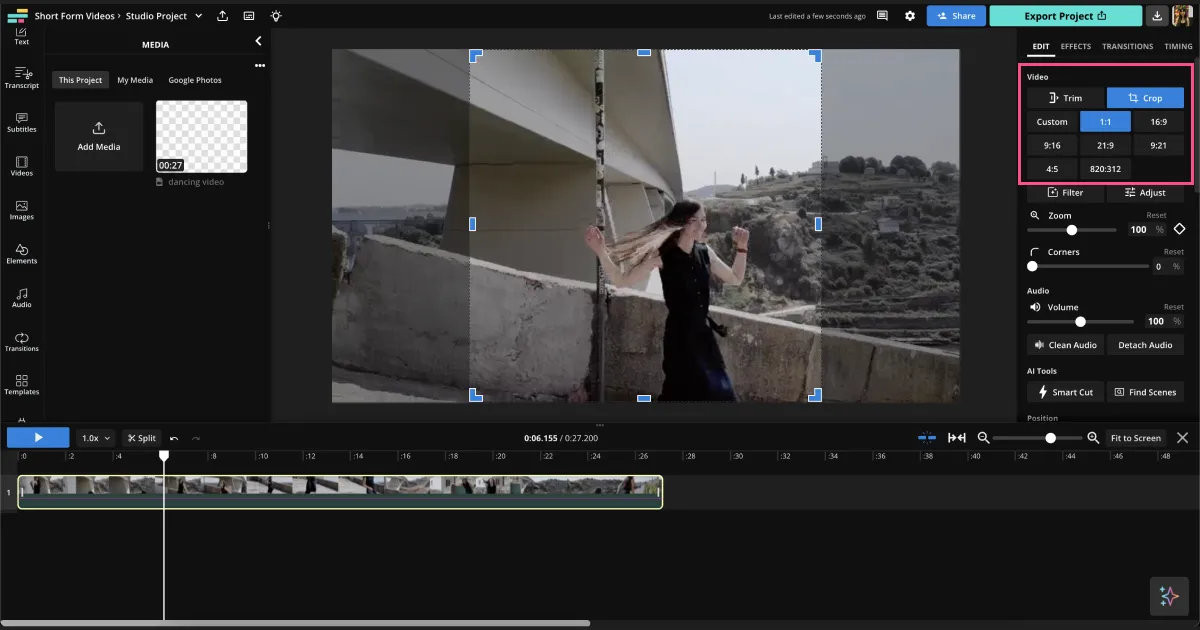
Preset aspect ratios are one of the most useful features a video cropper can offer. Rather than manually typing in pixel dimensions every time, presets let you select a ratio like 1:1, 16:9, 4:5, or 9:16 with a single click. This speeds up your workflow considerably, especially if you’re producing content for multiple platforms at once.
Custom dimension inputs take flexibility a step further. Sometimes a preset just doesn’t cut it, whether you need a specific pixel width for a website banner or you’re working within the constraints of a client brief. A good free tool should allow you to type in exact width and height values so you’re never boxed in by what’s available in a dropdown menu.
Other features worth evaluating include: drag-and-drop cropping interfaces, real-time preview, output quality settings, file size limits, and whether the tool works entirely in the browser without requiring a software download. The best free tools balance ease of use with enough flexibility to handle both casual and professional use cases.
10 Tips for Getting the Most Out of Free Online Video Croppers
1. Always Start With the Highest-Quality Source File
Before you crop anything, make sure you’re working from the best version of your video. Cropping reduces the total frame area, which means any compression artifacts or pixelation already present in your file will become more noticeable after the fact. If you have access to the original uncompressed or minimally compressed file, use that as your starting point. You can always export at a lower quality for web use afterward.
2. Use Preset Sizes That Match Your Platform’s Native Format
One of the biggest workflow improvements you can make is simply learning the standard aspect ratios for the platforms you use most. Instead of eyeballing dimensions or trial-and-erroring your way through exports, use tools that offer named presets for platforms like Instagram, YouTube, TikTok, and Twitter/X. This reduces the chance of your video being further cropped or distorted after upload, and it saves you time by eliminating guesswork.
When a tool offers platform-specific presets, it’s usually doing the math for you in the background. For example, an “Instagram Story” preset will automatically set your crop to 1080×1920 pixels at a 9:16 ratio. That kind of automation is exactly what makes free tools genuinely useful in a professional context.
3. Take Advantage of Adobe Express for a Polished, All-in-One Experience
For a browser-based solution that pairs ease of use with reliable output quality, the Adobe Express video cropper is worth bookmarking. It allows you to crop videos directly in your browser with support for preset aspect ratios as well as custom dimensions, making it versatile enough for both quick edits and more intentional reframes.
What makes the Adobe Express tool stand out among free online options is that it integrates cropping into a broader creative workflow. After you crop your video, you can continue editing within the same platform, adding text, adjusting colors, or trimming the timeline without needing to export and re-import into a different tool. For content creators who want a cohesive editing experience without jumping between multiple apps, this is a meaningful advantage.
4. Use Custom Dimensions for Website and Embed Use Cases
Social media presets are great, but they don’t cover every situation. If you’re embedding a video into a website, a blog post, or an email campaign, you may need a very specific width to match your layout. In these cases, a tool that lets you enter exact pixel values is essential.
When working with custom dimensions for web, keep in mind that most modern websites use responsive layouts, meaning your video container may scale fluidly. A good rule of thumb is to crop to the maximum width your layout supports while maintaining the aspect ratio you want. Most online croppers that support custom dimensions will let you lock the aspect ratio while adjusting size, which prevents unintentional distortion.
5. Preview Before You Export
It sounds obvious, but many people skip the preview step and end up cropping out something important, like a speaker’s face, a product being demonstrated, or a key piece of on-screen text. Always use the preview feature before finalizing your crop, and scrub through the entire clip if possible.
This is especially important when cropping vertically oriented footage that was originally filmed horizontally. The subject of the video may drift in and out of frame during movement, and what looks well-framed in one moment might be completely off-center a few seconds later. A preview helps you catch these issues before you commit to an export.
6. Understand the Difference Between Cropping and Resizing
These two terms are often used interchangeably but they refer to different operations. Cropping removes portions of the frame, changing the field of view. Resizing scales the entire frame up or down without removing anything. When you crop a video, you’re essentially zooming in on a portion of the original footage. When you resize, you’re making the whole video larger or smaller.
Understanding this distinction matters because cropping will always result in some loss of content from the edges of your frame. If your goal is simply to make the file smaller or fit a container, resizing may be a better option. If your goal is to reframe the shot or change the aspect ratio, cropping is what you need.
7. Batch Your Crops When Targeting Multiple Platforms
If you’re regularly producing content for multiple platforms, consider setting up a simple workflow where you crop the same source video into multiple formats in one session. Start with the widest format you need (typically 16:9 for YouTube), then work your way through the other ratios you need, such as 1:1 for Instagram feed, 4:5 for portrait posts, and 9:16 for stories and Reels.
Some free online tools allow you to queue multiple exports, which can save significant time if you’re managing a content calendar. Even if your tool only processes one at a time, grouping your crops into a single session is more efficient than coming back to re-upload and re-crop the same video across multiple separate editing sessions.
8. Pay Attention to File Size Limits on Free Tiers
Most free online video tools impose a file size or duration limit as part of their free tier. These limits can range anywhere from 100MB to 2GB, depending on the platform. Before you start working, check whether your source file falls within the tool’s free tier limits.
If your file is too large, you have a few options. You can compress the video before uploading using a free compression tool, trim the clip to just the segment you need to crop, or look for a tool with a higher file size ceiling on its free tier. It’s worth noting that file size limits are often tied to video resolution and duration, so higher-resolution footage will eat through limits faster than standard definition clips.
9. Look for Tools That Don’t Add Watermarks on Free Exports
Watermarks are one of the most common trade-offs on free video editing tools. Some platforms add a logo or watermark to your exported video unless you upgrade to a paid plan. Before investing time in a crop and edit, check whether the free version of a tool applies a watermark to exports.
Fortunately, several free tools offer clean exports without watermarks, especially for basic operations like cropping. Adobe Express, for instance, allows free users to export without watermarks on many project types. Reading the fine print before you start working will prevent the frustration of finishing an edit only to discover your output has a logo burned into the corner.
10. Use Browser-Based Tools to Avoid Software Installation Headaches
One of the biggest advantages of online video croppers is that they run entirely in your browser, meaning no downloads, no installation, and no compatibility issues with your operating system. This is particularly useful if you’re working on a shared or managed computer where you don’t have admin permissions to install software.
Browser-based tools also tend to update automatically, so you’re always working with the latest version without needing to manually update anything. For occasional or low-volume editing tasks, a reliable browser-based cropper covers most needs without any of the overhead that comes with traditional desktop software.
How to Crop a Video Online: A Simple Step-by-Step Walkthrough
Cropping a video online is a straightforward process once you know what to expect. Here’s a general workflow that applies to most free browser-based tools:
- Open the tool in your browser and look for an option to upload or import your video file. Most tools support drag-and-drop or a file browser upload.
- Select your crop method. Choose a preset aspect ratio from the available options, or switch to a custom mode where you can enter specific pixel dimensions.
- Adjust the crop frame. Use the handles on the crop overlay to position and size the frame around the area of the video you want to keep. Drag the frame to reposition it if needed.
- Preview your crop by playing the video through the preview window. Make sure your subject stays within the crop frame throughout the entire clip.
- Export your video. Select your preferred output quality and format (MP4 is the most universally compatible option), then download your cropped file.
The whole process typically takes just a few minutes for shorter clips and is well within reach for anyone regardless of prior editing experience.
FAQ
What is the best free online video cropper for beginners?
For beginners, the best free online video cropper is one that combines a simple interface with enough feature depth to handle real-world use cases. Look for tools that offer labeled preset sizes so you don’t have to memorize aspect ratios, along with a visual drag-and-drop crop interface that gives you immediate feedback as you adjust the frame. Browser-based tools are particularly beginner-friendly because they require no installation and work on virtually any device. Adobe Express is a strong option for beginners because its interface is designed to be intuitive, and it offers both preset and custom dimension options without requiring any technical background.
Can I crop a video without losing quality?
Technically, cropping a video always involves some degree of quality tradeoff because you’re reducing the total pixel area of the original frame. However, the key to minimizing quality loss is to start with the highest-resolution source file available and to export at the highest quality setting your free tool allows. If you’re cropping a 4K video to a smaller frame, the resulting crop will still look very sharp even after the reframe. Where quality loss becomes noticeable is when people try to crop a low-resolution video and then scale it back up to fill a larger container. For best results, work with high-resolution source footage whenever possible.
Are there free tools that support vertical video cropping for TikTok and Reels?
Yes, most modern free online video croppers include a 9:16 preset specifically for vertical short-form video platforms like TikTok, Instagram Reels, and YouTube Shorts. When selecting a tool, look for one that explicitly lists short-form video presets or has a labeled “TikTok” or “Reels” option. These presets automatically set your crop frame to the standard 1080×1920 pixel ratio used by these platforms. If you’re converting a landscape video to vertical, keep in mind that you’ll be working with a much narrower slice of your original footage, so it helps to shoot with this conversion in mind from the start. For a useful reference on platform-specific video specifications, Sprout Social’s video specs guide is frequently updated and covers all major platforms.
What file formats do free online video croppers typically support?
Most free online video croppers support the most widely used formats, with MP4 (H.264) being the near-universal standard for both input and output. Many tools also accept MOV, AVI, MKV, and WebM files on the input side, though export options are often limited to MP4 for free users. If you’re working with a less common format like HEVC (H.265) or ProRes, you may need to convert your file to MP4 before uploading it to a browser-based tool. A free tool like HandBrake can handle format conversion before you move on to cropping, and it’s available for Windows, Mac, and Linux.
Is it safe to upload personal or confidential video files to a free online tool?
This is a fair concern, and it’s worth reading the privacy policy of any tool you use before uploading sensitive content. Most reputable free online video editing tools process files temporarily on their servers and delete them after a set period, often within a few hours of your session ending. Some browser-based tools process video entirely client-side, meaning your file never leaves your device at all, which offers the highest level of privacy. For videos containing personally identifiable information, confidential business footage, or anything you’d prefer to keep off a third-party server, look specifically for tools that advertise client-side or local processing. When in doubt, check the tool’s documentation or help center for a clear statement about how uploaded files are handled and stored.
Conclusion
Cropping a video no longer requires expensive software or a professional production setup. The free online tools available today offer a genuine combination of preset sizes and custom dimension support that makes it easy to prepare content for any platform or use case, whether you’re a casual creator posting to social media or a small business owner managing video content across multiple channels.
The key is knowing what to look for, understanding the difference between presets and custom dimensions, and choosing a tool that fits your workflow rather than fighting against it. With the tips and information in this guide, you have everything you need to start cropping videos confidently, efficiently, and without spending anything. Start with a high-quality source file, choose your format with intention, and let the right tool do the heavy lifting.
READ ALSO: CleverGet Recorder Review: Record DRM-Protected Videos Without Limits